
TiviMate Guide
How to Add Playlist to TiviMate
Last updated: April 2026
TiviMate supports two main playlist formats: M3U URL and Xtream Codes. Your IPTV provider will give you one or both. If you need to install TiviMate first, see our TiviMate setup guide. This guide shows how to add and configure your playlist in TiviMate.
Quick Answer
To add a playlist to TiviMate:
- Open TiviMate and go to Settings → Add playlist
- For M3U: choose Add URL, paste your playlist link, and save
- For Xtream Codes: choose Xtream Codes API, enter server URL, username, and password
- Wait for channels to load; add EPG source if prompted
- Refresh the playlist in Settings when your provider updates channels
Add Playlist Using M3U URL
If your provider supplies an M3U or M3U8 link:
- Open TiviMate and go to Settings
- Select Add playlist
- Choose Add URL or Playlist
- Paste your M3U link (e.g. https://provider.com/get.php?username=xxx&password=xxx&type=m3u_plus)
- Tap Next or OK to load channels
- Add an EPG source if prompted, or skip and configure later
The link often includes your username and password. Copy it exactly from your provider's dashboard or email.
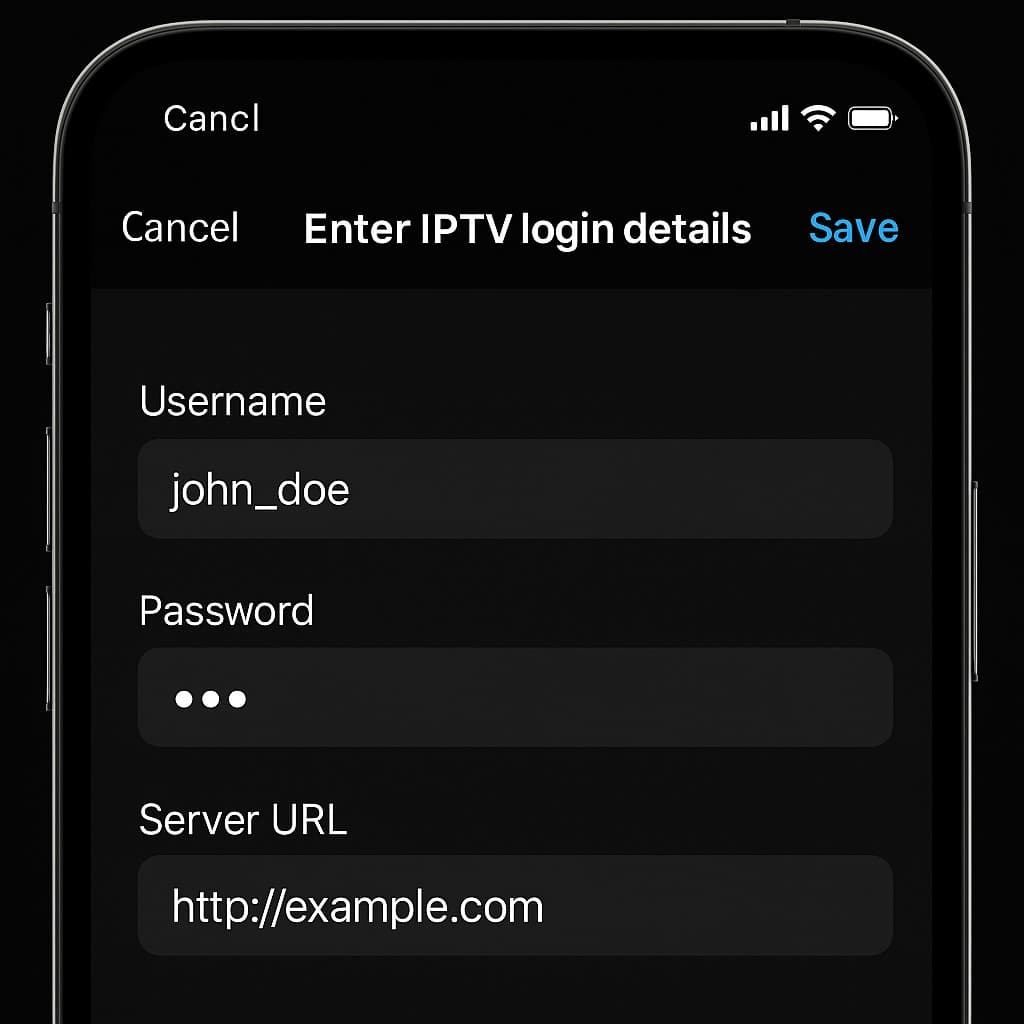
Add Playlist Using Xtream Codes Login
Xtream Codes uses a server URL plus credentials:
- Server URL — Format: http://server.example.com:port or https://... Include the port if your provider specifies one.
- Username — Your IPTV account username
- Password — Your IPTV account password
- Open TiviMate → Settings → Add playlist
- Select Xtream Codes API
- Enter server URL, username, and password
- Save; TiviMate will fetch channels and EPG from the server
Refresh Playlist and Load Channels
To update your playlist with new channels or changes from your provider:
- Go to Settings → Playlists
- Select your playlist
- Choose Update playlist or Refresh
- Wait for the app to reload; channels will refresh
You can also set an automatic refresh interval (e.g. every 12 or 24 hours) in playlist settings. If you're setting up on a new device, follow this Firestick IPTV installation guide or see how to watch IPTV on Samsung Smart TV.
Troubleshooting
Playlist not loading
Double-check the URL and credentials. Remove any extra spaces. Ensure your subscription is active. Try the playlist link in VLC or a browser to confirm it works.
Invalid M3U link
The URL must start with http:// or https://. Some providers use a specific port—include it (e.g. :8080). Avoid shortening or modifying the link. Copy the full URL from your provider's dashboard.
Xtream Codes login error
Verify the server URL format (include port if specified), username, and password. No extra spaces. Some providers need the full URL with /c/ path. Contact your provider for correct Xtream Codes credentials.
Channels not appearing
Refresh the playlist in Settings → Playlists → Update playlist. Check with your provider that channels are included in your plan. Some channels may be geo-restricted or temporarily offline.
Supported Devices
TiviMate runs on Android-based devices. Supported platforms include:
- Firestick — Install via sideloading. See our Firestick IPTV installation guide
- Android TV — Works on NVIDIA Shield, Xiaomi, and other Android TV boxes. See how to watch IPTV on Android TV Box
- Smart TVs — Android TV–based Smart TVs. For Samsung (Tizen), see how to watch IPTV on Samsung Smart TV
Alternative IPTV Apps
If TiviMate doesn't suit your device or preferences, consider these players:
- IPTV Smarters Pro — User-friendly, supports Xtream Codes and M3U
- Smart IPTV — Lightweight, one-time purchase, popular on Smart TVs
- OTTPlayer — Web-based option, works in browsers
Compare players in our best IPTV apps guide.
Understanding IPTV Login Types
Your provider may give you either an M3U playlist link or Xtream Codes credentials. For a full breakdown of each format and when to use it, see our Xtream Codes login guide and IPTV M3U playlist guide.
Related Guides
- TiviMate Setup Guide
- How to Install IPTV on Firestick
- How to Install IPTV on Smart TV
- IPTV Subscription UK Plans — Compare plans that work with TiviMate
Need an IPTV subscription for TiviMate? Compare plans, or start with a free trial to test before subscribing.
View IPTV Plans