
iOS Setup
How to Install IPTV on iOS (Step-by-Step Guide)
Last updated: April 2026
What is IPTV on iOS?
IPTV on iOS lets you stream live TV, sports, and on-demand content on your iPhone or iPad using apps from the App Store. Popular apps like GSE Smart IPTV and IPTVX support M3U playlists and provider login, so they work with any IPTV subscription. No jailbreak is required. If you're new to IPTV, read our IPTV subscription guide. Then compare IPTV plans to find a service that supports iOS.
Looking for other devices? Check out our Android, FireStick, Smart TV, or MAG Device installation guides.
Best IPTV Apps for iPhone and iPad
Popular IPTV apps that work on iOS include:
- GSE Smart IPTV — Full-featured, supports M3U and Xtream
- IPTVX — Clean interface, App Store available
- IPTV Smarters — User-friendly, multi-device
- Smart IPTV — Lightweight option
- XCIPTV — Simple setup for beginners
This guide uses GSE Smart IPTV or IPTVX as examples. Both work with any IPTV subscription.
Not sure which app to use? See our Best IPTV apps guide for detailed comparisons.
This guide explains how to install and configure IPTV apps on iPhone and iPad. The process is straightforward and doesn't require jailbreaking.
Explore Channels Inside the IPTV App
Preview how IPTV channels are organized inside the streaming app. Click Live TV, Movies, or Series to explore categories and see how the interface works before subscribing.

Choose where to start
Looking for the best IPTV services? Read our IPTV subscription guide, Best IPTV, and compare IPTV plans.
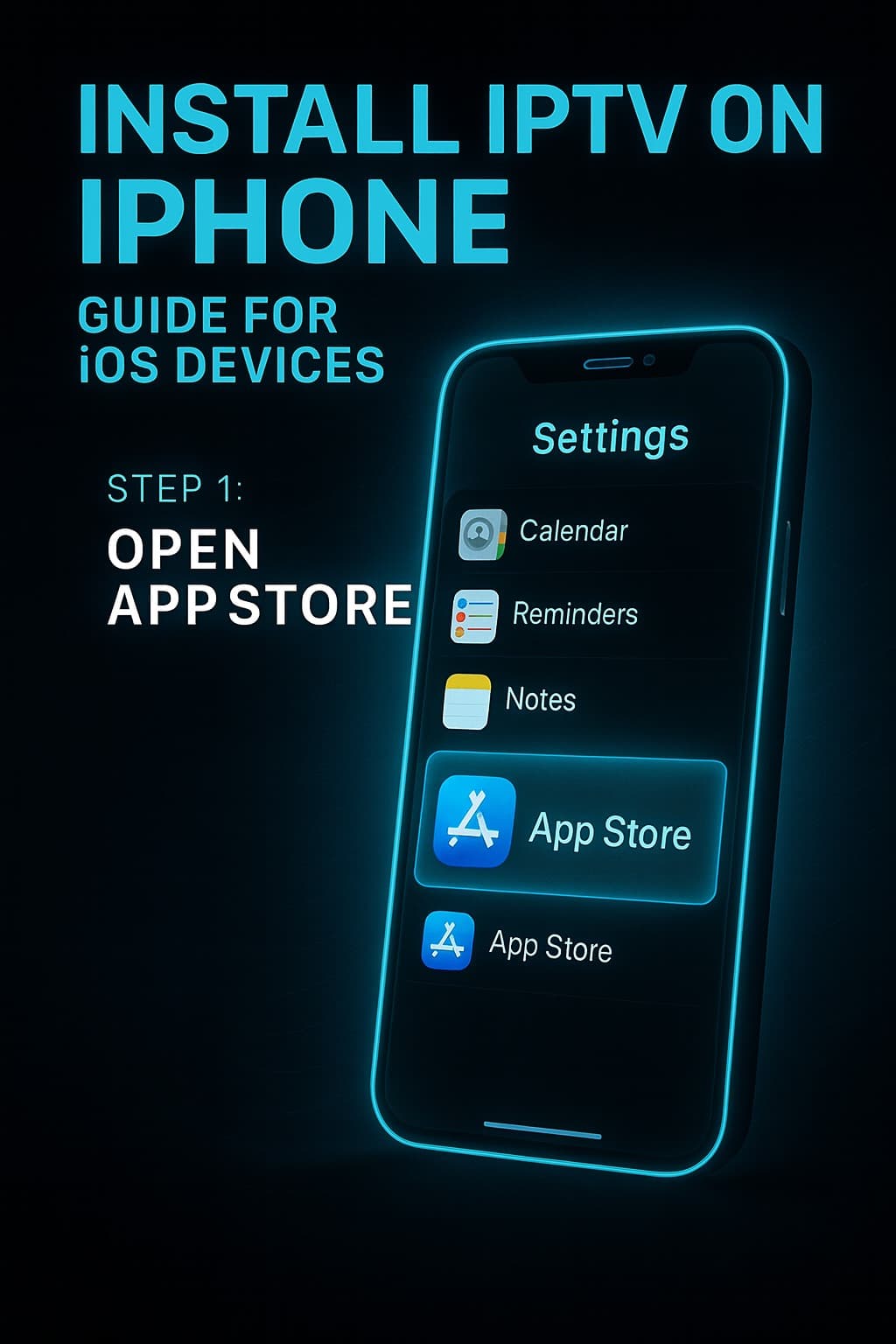
Step 1
Open the App Store
On your iPhone or iPad, open the App Store app. Make sure you're signed in with your Apple ID.
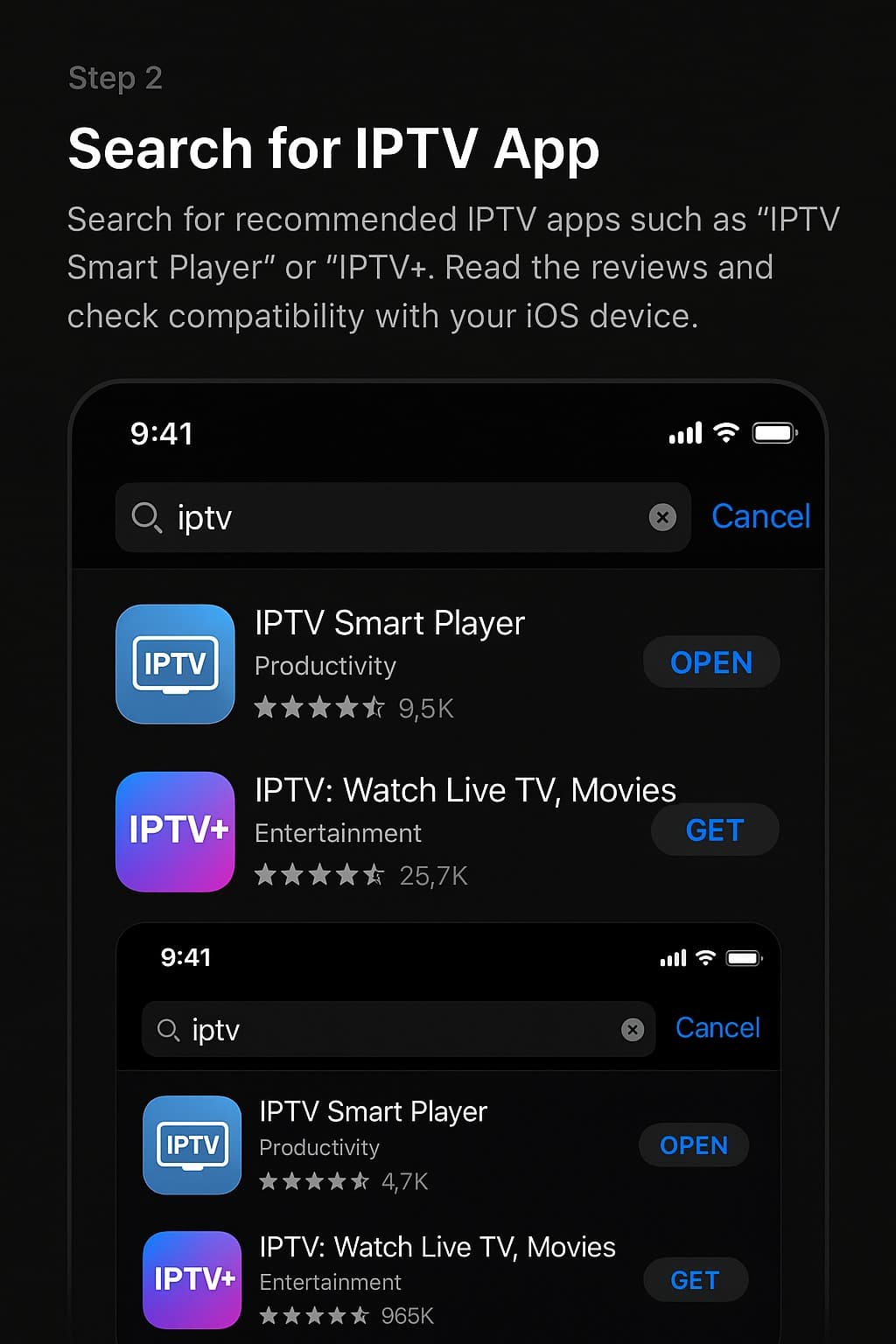
Step 2
Search for IPTV App
Search for a recommended IPTV app such as 'GSE Smart IPTV' or 'IPTVX'. Read reviews and check compatibility with your iOS version.
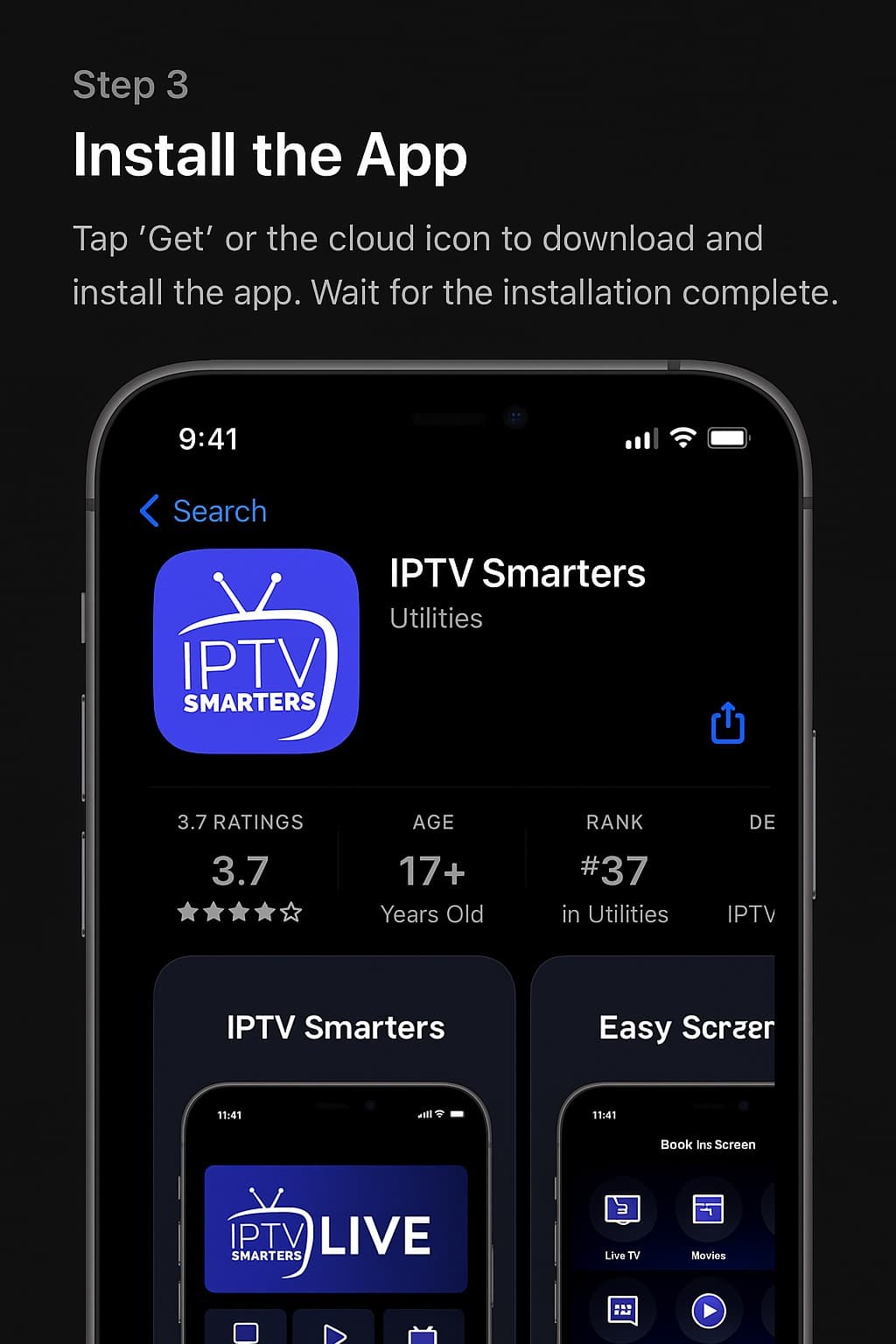
Step 3
Install the App
Tap 'Get' or the price button to download and install the app. Wait for the installation to complete.
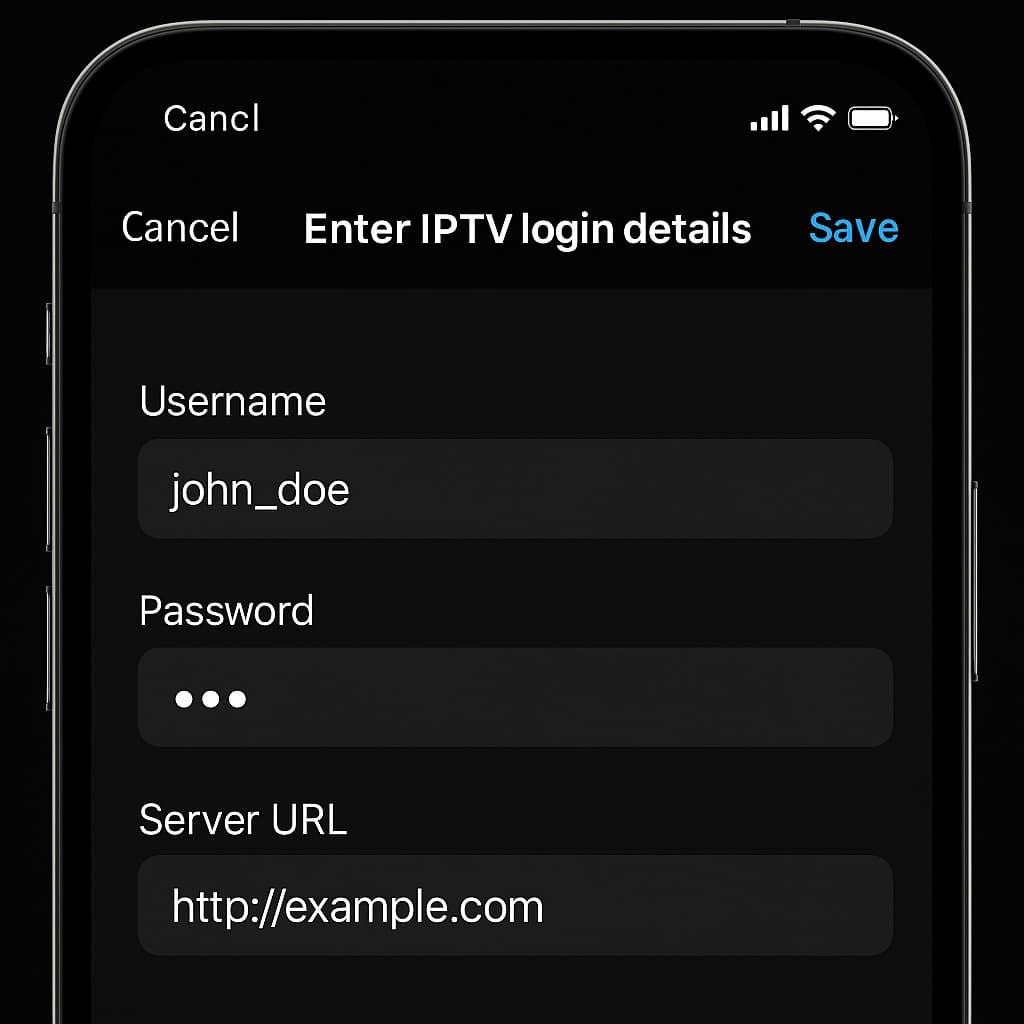
Step 4
Enter Login Details
Open the IPTV app and navigate to the settings or login section. Enter the username and password provided by your IPTV subscription provider.
Step 5
Start Streaming
Once logged in, the app will load your channel list. Browse categories, select channels, and start streaming IPTV content on your iOS device.
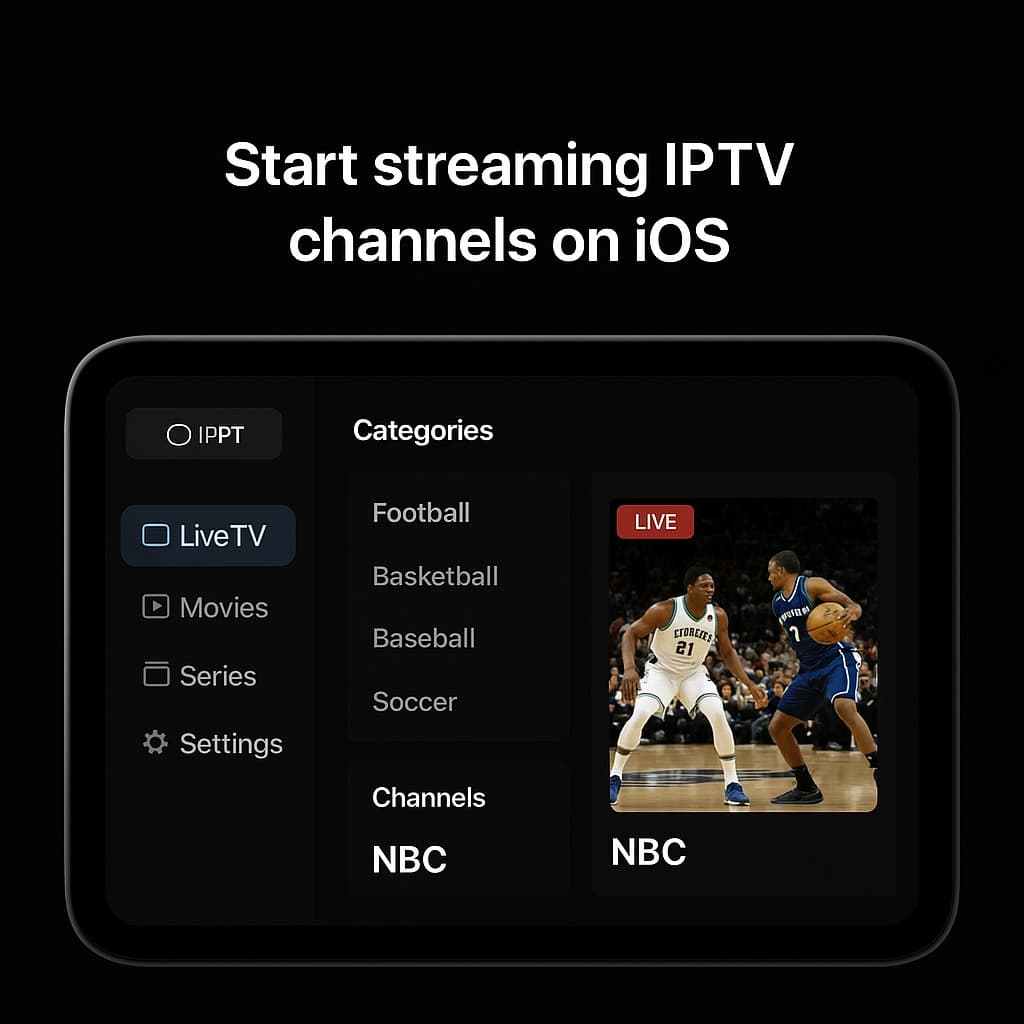
Stream on Your iPhone or iPad
Once your IPTV app is installed and configured, you can access thousands of channels, movies, and live sports directly on your iOS device. Need a subscription? Choose the plan that fits your needs.
Next Steps: Choose Your IPTV Service
Now that you know how to install IPTV on iOS, explore our UK-focused IPTV subscription options:
Compare plans with flexible pricing — all work on iPhone, iPad, and other iOS devices.
Not ready to commit? Start with a free trial and test the full channel lineup on your iPhone or iPad.
Set up IPTV on other devices — Firestick, Android, Samsung Smart TV, and more.
Choosing the Right IPTV Subscription
Choosing the right IPTV subscription ensures stable streaming, channel coverage, and compatibility with devices like iPhone, iPad, and Smart TVs. Browse our IPTV subscription plans to compare pricing and features. Unsure which plan fits? Start with a free trial — no commitment required.
iOS IPTV Setup FAQ
Find answers to common questions about IPTV subscription services, setup, and how the service works.