
MAG Device Setup
How to Set Up IPTV on MAG Device (Step-by-Step Guide)
Last updated: April 2026
What is IPTV on MAG Device?
MAG devices are dedicated IPTV set-top boxes (MAG 254, 256, 322) that connect to your IPTV subscription using a portal URL. Unlike Firestick or Smart TV, MAG doesn't use apps—you enter the portal URL in the device settings and it loads your channel list. MAG is favoured by advanced users for its stability and simple interface. If you're new to IPTV, read our IPTV subscription guide. Then compare IPTV plans to find a provider that supports MAG.
Looking for other devices? Check out our Android, FireStick, iOS, or Smart TV installation guides.
IPTV Services Compatible with MAG
MAG devices work with any IPTV provider that offers a MAG portal URL. Popular UK-focused services supporting MAG include providers with Stalker/MAG compatibility. You'll need the portal URL (e.g. http://portal.example.com/c/) and your subscription credentials. Our IPTV plans include MAG support—contact us for your portal URL after subscribing.
Comparing IPTV setups across devices? See our Best IPTV apps guide for Firestick, Smart TV, and more.
This guide explains how to configure IPTV on MAG 254, MAG 256, and MAG 322 using a portal URL.
Explore Channels Inside the IPTV App
Preview how IPTV channels are organized inside the streaming app. Click Live TV, Movies, or Series to explore categories and see how the interface works before subscribing.

Choose where to start
Looking for the best IPTV services? Explore our reviews: vwatch, Best IPTV, and IPTV subscription guide, Best IPTV, and compare IPTV plans.
Step 1
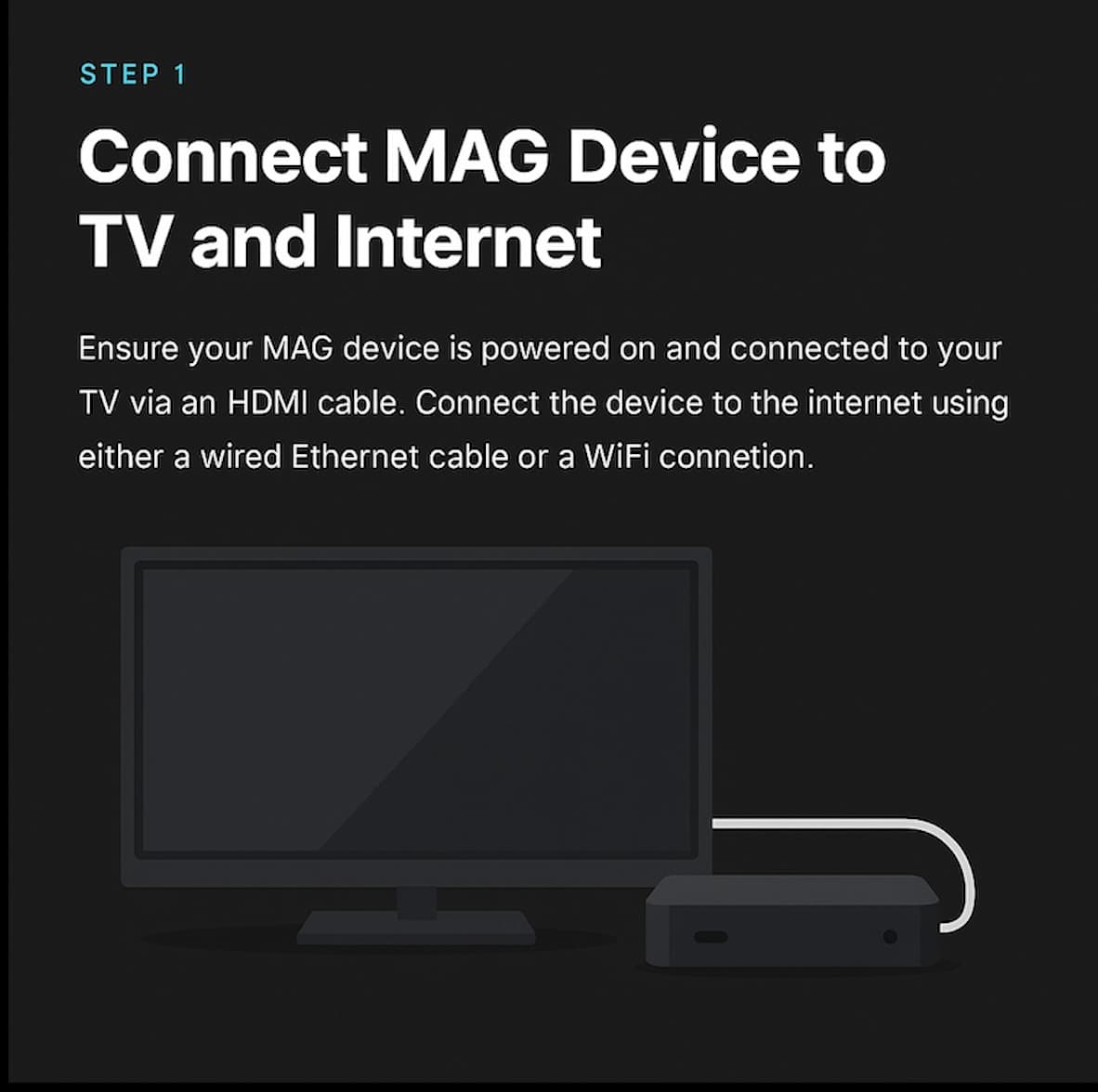
Connect MAG Device to TV and Internet
Connect your MAG device to your TV using an HDMI cable and ensure it's connected to your home network via Ethernet or Wi-Fi.
Step 2
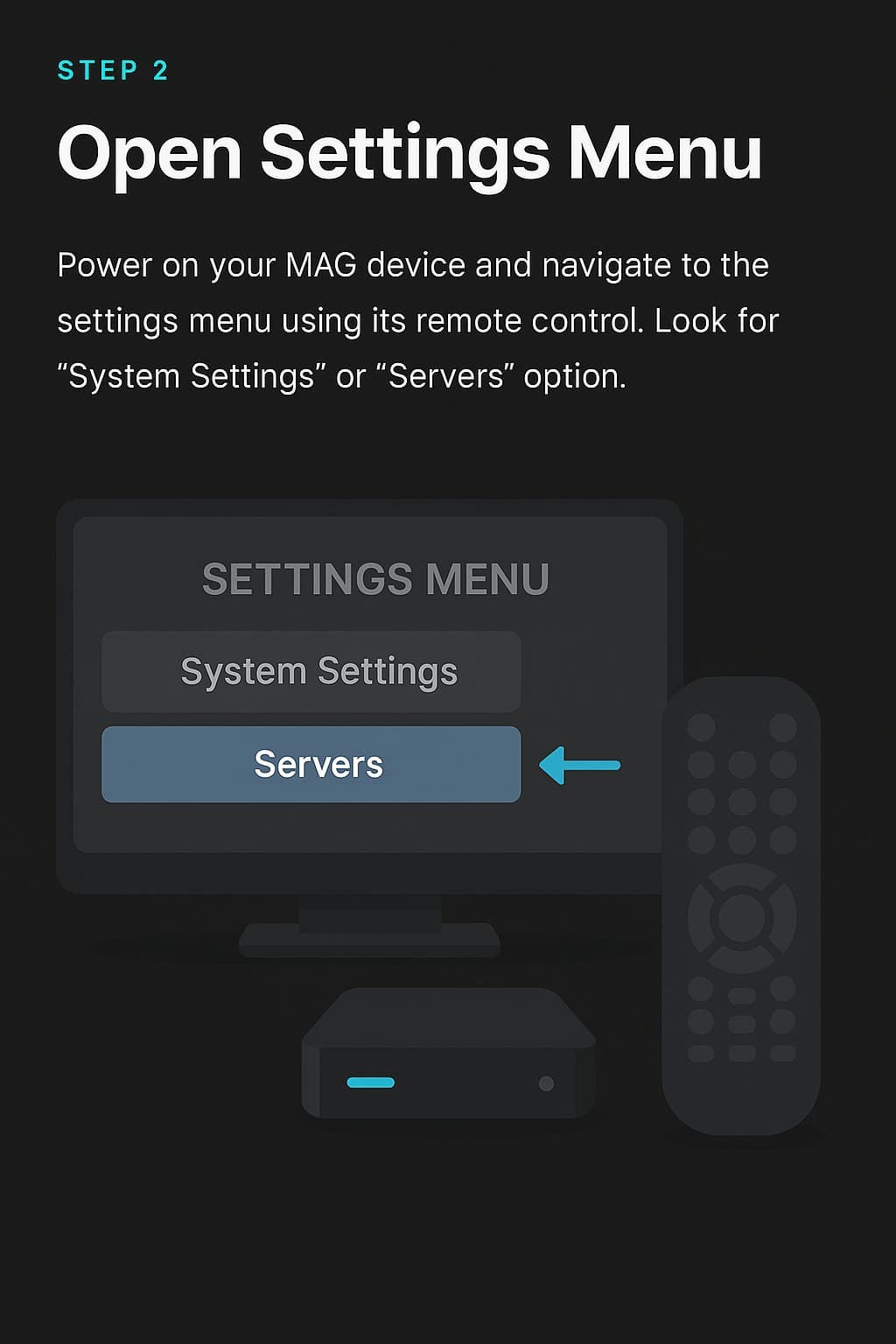
Open Settings Menu
Power on your MAG device and navigate to the Settings menu using the remote control. Look for 'System Settings' or 'Servers' option.
Step 3
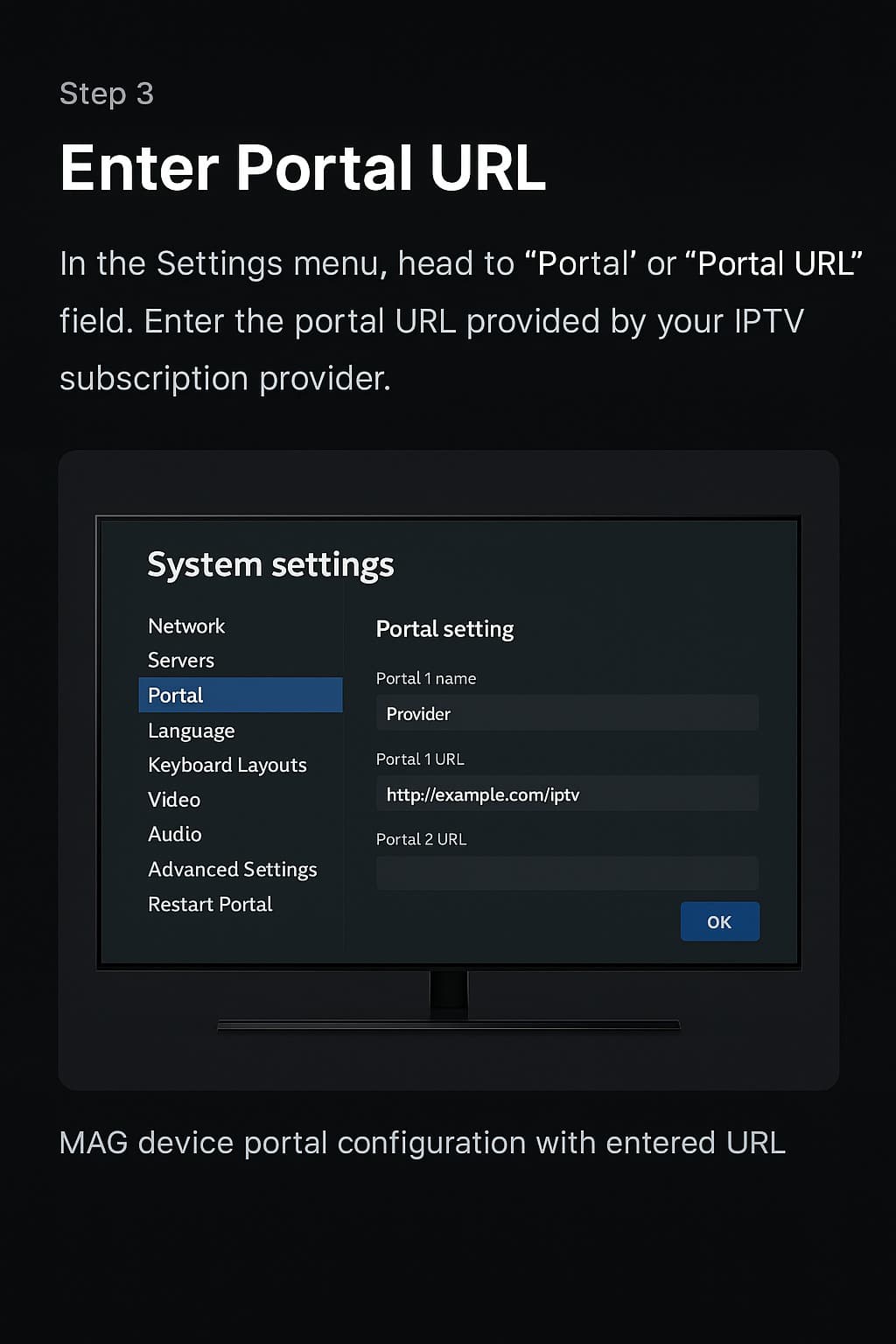
Enter Portal URL
In the Settings menu, find the 'Portal' or 'Portal URL' field. Enter the portal URL provided by your IPTV subscription provider.
Step 4
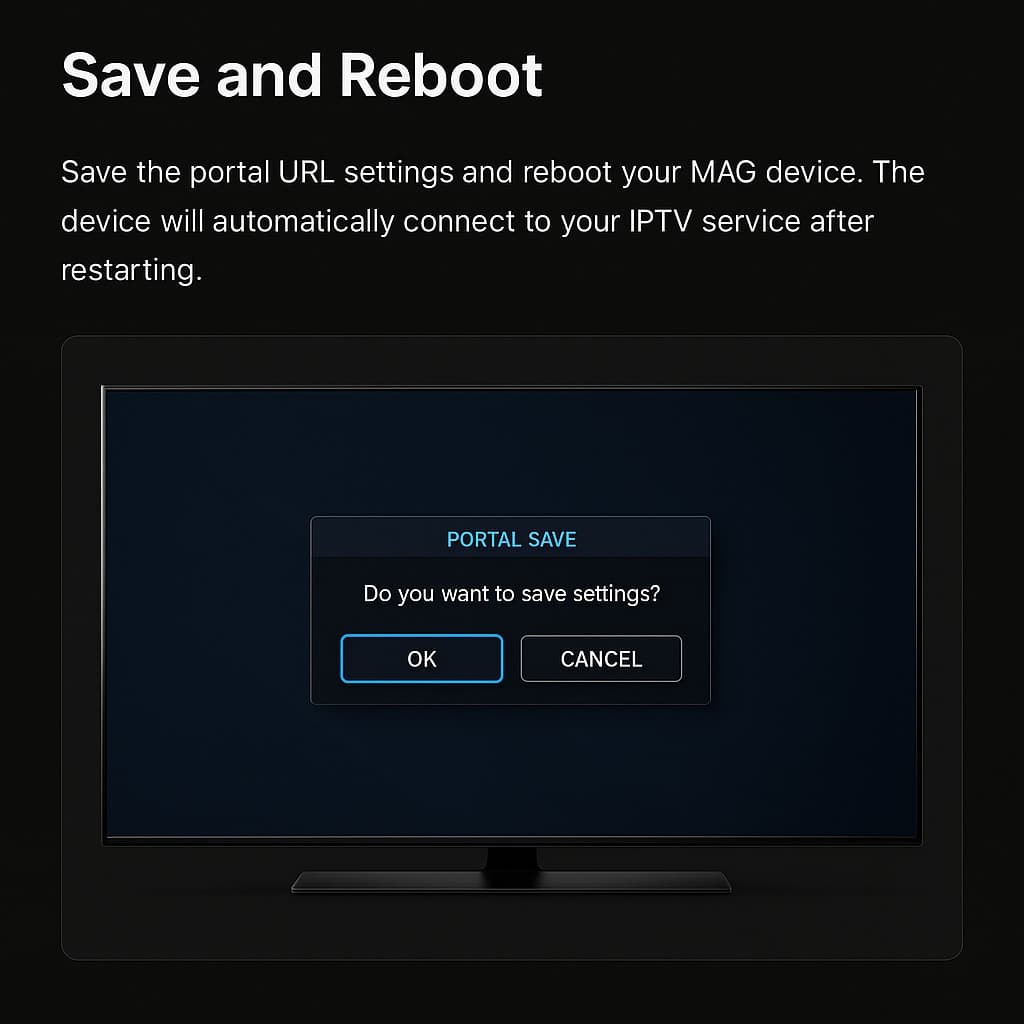
Save and Reboot
Save the portal URL settings and reboot your MAG device. The device will automatically connect to your IPTV service after restarting.
Step 5
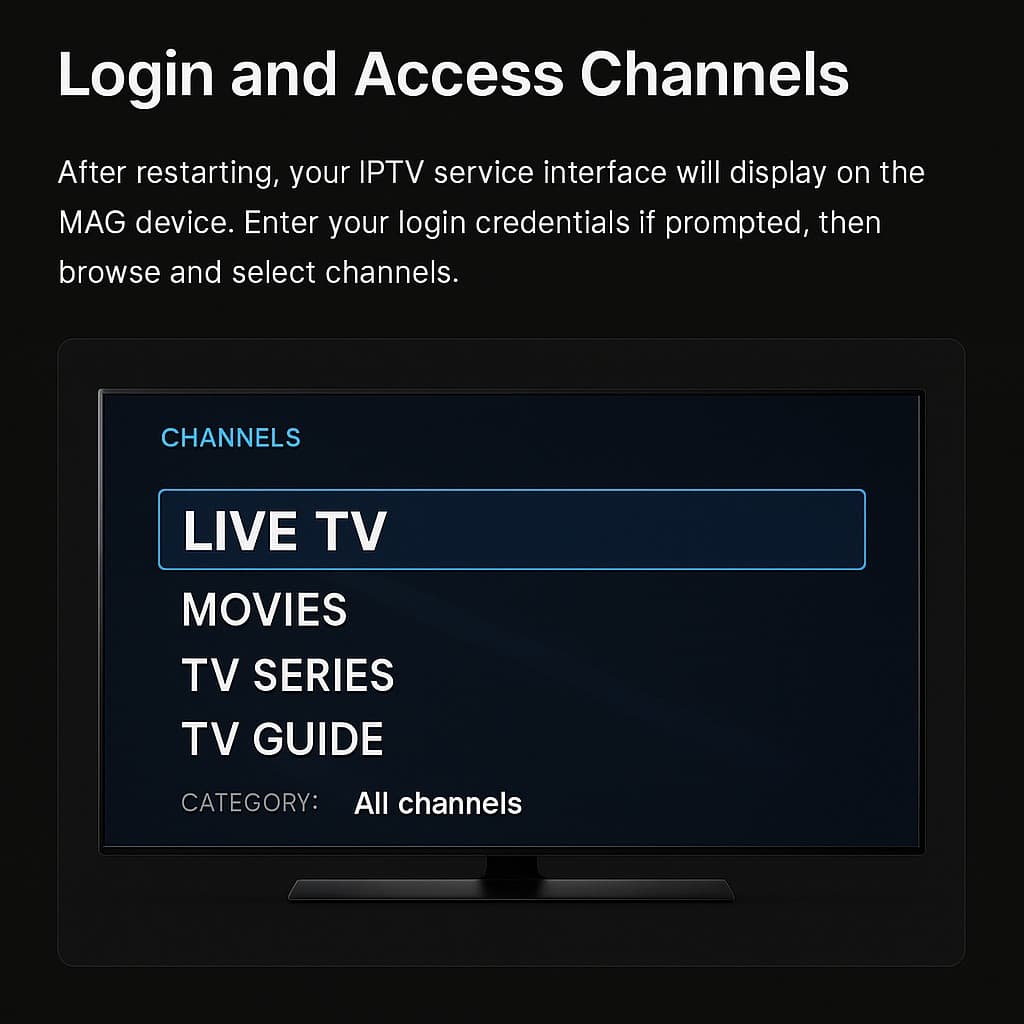
Login and Access Channels
After rebooting, your MAG device should display the IPTV service interface. Enter your login credentials if prompted, then browse and stream channels.
Stream with Your MAG Device
Once your MAG device is configured with the portal URL, you can access thousands of IPTV channels, movies, and live sports. Need a subscription? Choose the plan that fits your needs.
Next Steps: Choose Your IPTV Service
Now that you know how to set up IPTV on MAG devices, explore our UK-focused IPTV subscription options:
Compare plans with flexible pricing — MAG portal support included on all tiers.
Test the channel lineup before subscribing. No commitment required.
Set up IPTV on other devices — Firestick, Smart TV, Android, and more.
Choosing the Right IPTV Subscription
MAG devices work with any subscription that provides a portal URL. Browse our IPTV subscription plans to compare pricing and features. Want to verify quality first? Start with a free trial — no commitment needed.
MAG Device IPTV Setup FAQ
Find answers to common questions about IPTV subscription services, setup, and how the service works.